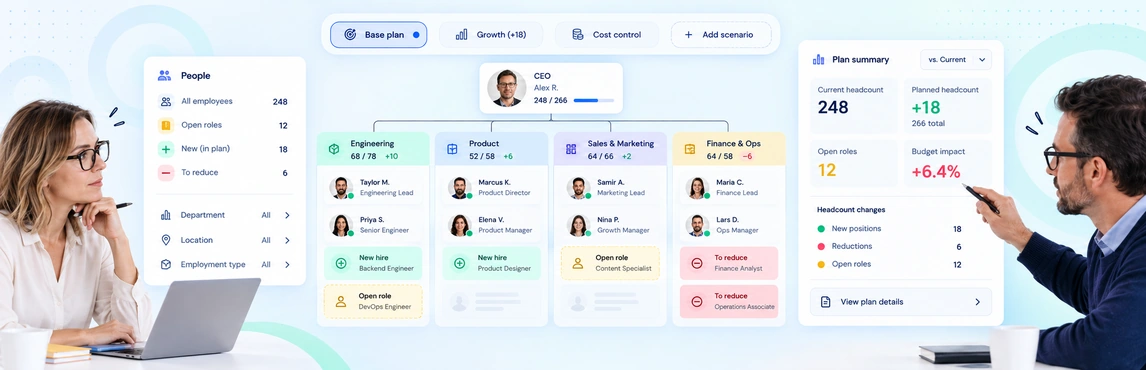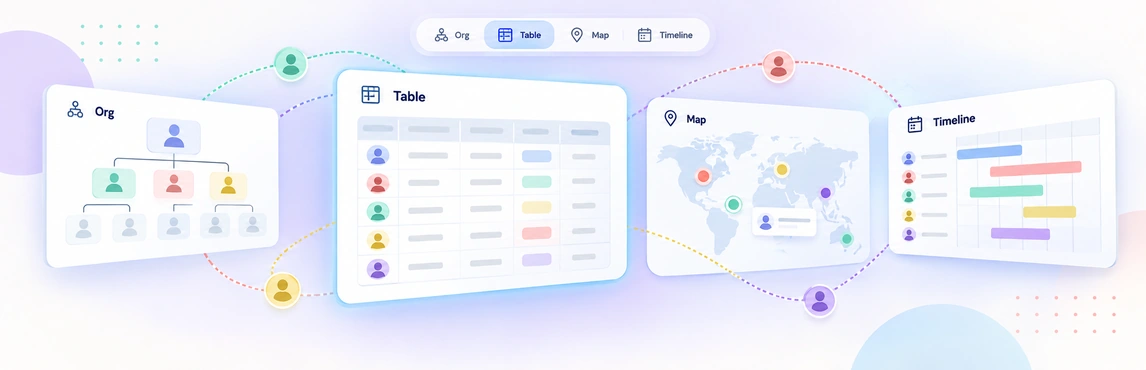
Workforce planning views in Creately Atlas help People Ops prepare the right organizational detail for each discussion. A department head may need reporting lines and vacancies, while HR leadership needs a proposed structure and its implications. Start with the question the meeting must answer, then choose the fields and view that support it.
The product guide describes department views, visual presets, filters, scenarios, and historical projections. These serve different purposes; confirm the available workflows and how they reflect changes to your data during evaluation.
Choose a View for the Question
| Planning question | View to evaluate | Data to prepare |
|---|---|---|
| Who reports to this manager? | Department or focused subtree | Current reporting lines and department membership |
| Which positions need attention? | Vacancy view | Positions, occupants, and vacancy status |
| Where do we need a skill? | Skills fields and filters | Agreed skill names, proficiency, and role requirements |
| What changes in the proposed team? | Planning scenario | Current structure and proposed additions, moves, or updates |
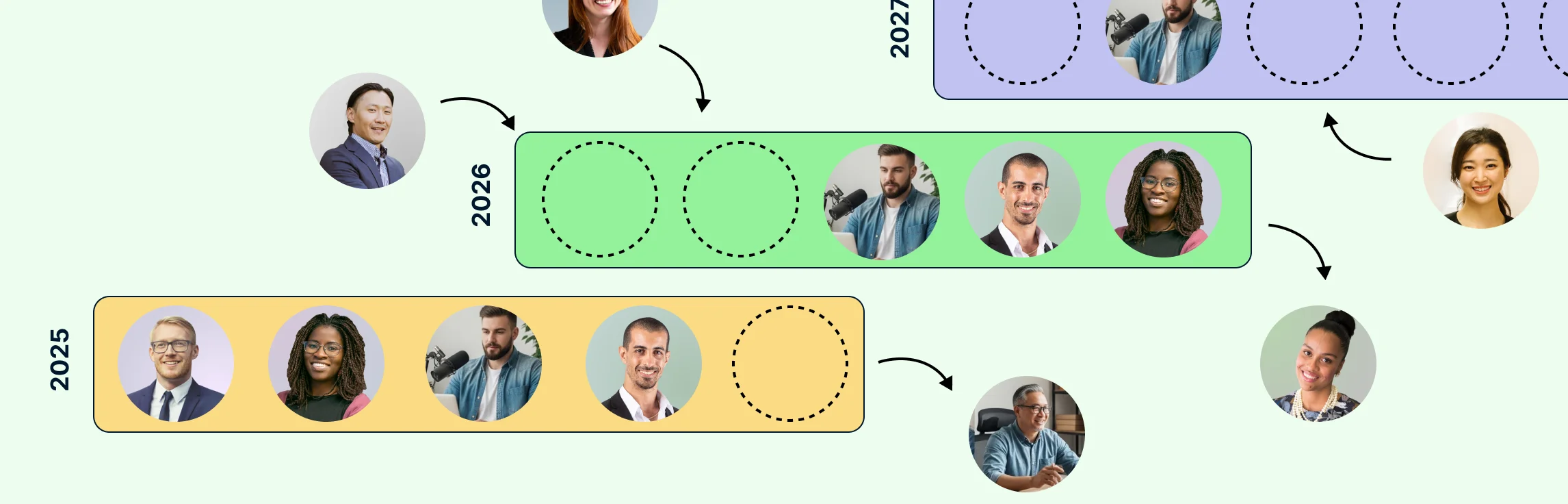
| What did the org look like before a change? | Historical as-of view | Dated relationships and employee join or departure records |
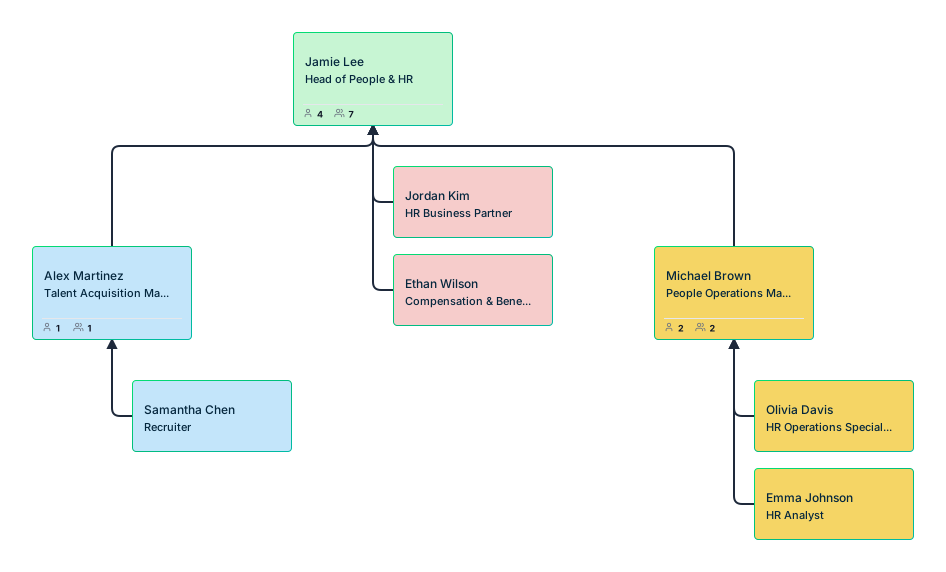
The workforce planning organization chart guide provides examples for preparing HR views. Use the department template to agree on what a manager needs to see before adding more information.

Prepare the Source Data Once, Then Check Each View
Import a representative department from a recent CSV and review the suggested mappings. Resolve missing IDs, inconsistent department names, and incorrect managers before using it in a planning meeting.
The guide describes generating department sub-diagrams after import, focusing on a subtree, and applying visual rules. Test these separately. Change a sample reporting line and check where the change appears; do not assume every copied diagram or exported image stays synchronized.
Give each planning view a clear purpose and source date. Keep exported copies labeled so a reviewer can tell whether they are looking at the current model or a snapshot from an earlier meeting.
Add Skills and Workforce Detail as Needed
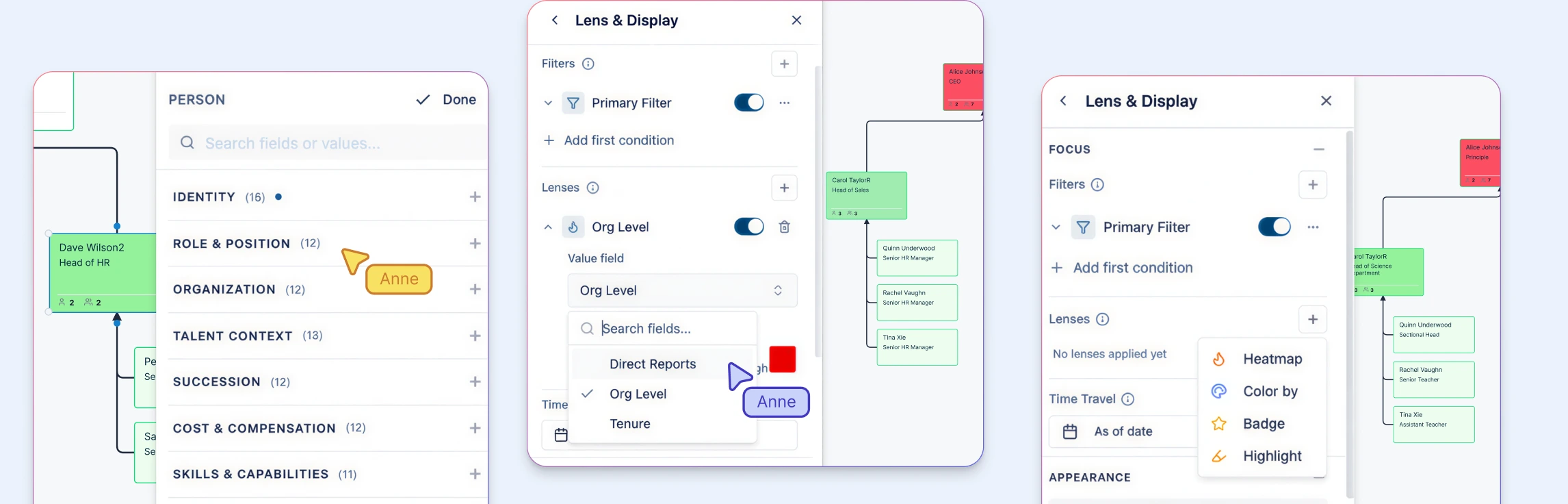
Activate only the field packs needed for the discussion. The Workforce pack includes FTE, worker type, and contract dates; the Skills pack includes skills, certifications, and proficiency. Field activation exposes those fields, while your team supplies and maintains the records.
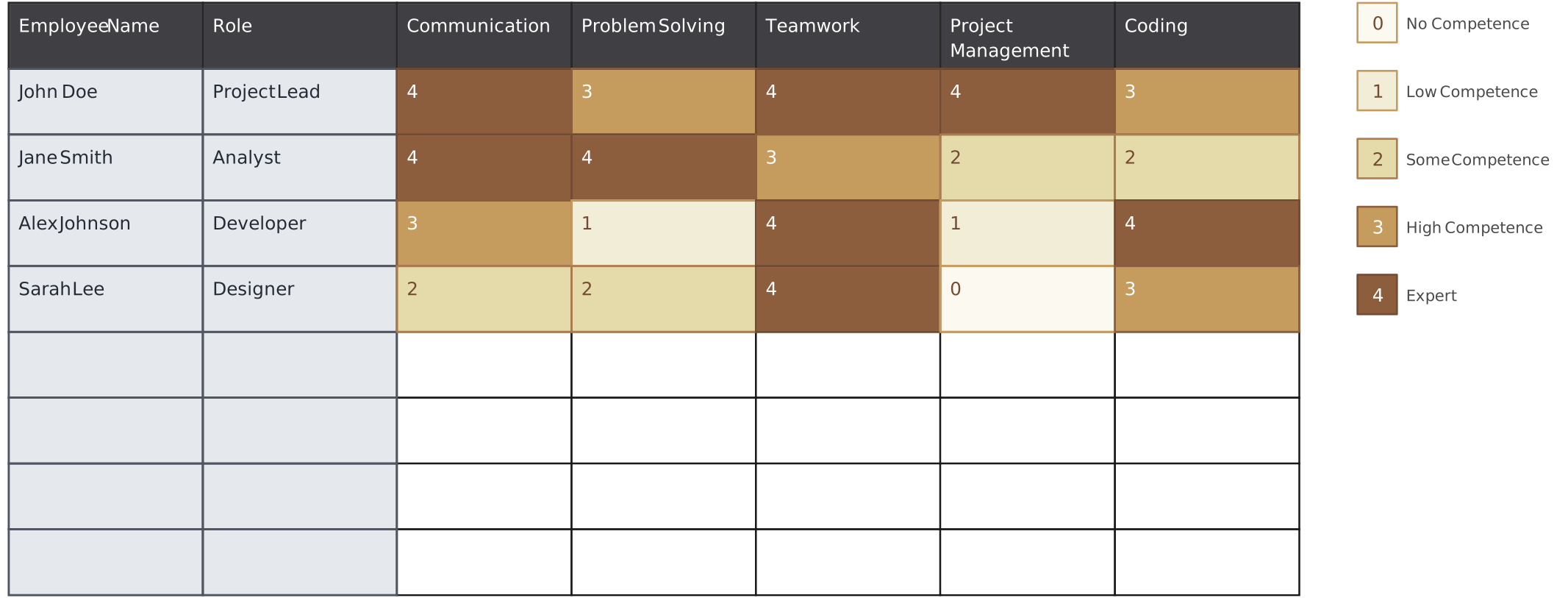
A skills matrix helps managers agree on consistent assessments. Use the worksheet below to prepare that information; it does not automatically populate Atlas or determine employee availability.
Keep Visual Analysis Separate from Proposed Changes
Color rules and presets help people see patterns in existing data. A scenario represents a proposed change to the organization. Use scenario planning when the discussion moves from understanding the current team to changing roles or reporting lines.
For example, a vacancy view may highlight an open manager position. Prepare separate scenarios for backfilling that role and moving its reports to another manager. Review both with the department head before updating the current structure.
Check the View Before Sharing It
- Confirm the question and audience. A manager review and an executive budget review need different detail.
- Reconcile the records. Compare people, positions, vacancies, and totals with the agreed source.
- Check the display. Verify that a color, filter, or preset represents the intended field and explain its meaning.
- Test access. Use representative accounts to check sensitive fields in the view and any exported output.
- Record the next action. Name the person responsible for resolving gaps or preparing the next scenario.
Refer to the Atlas security guide when setting up the access review. A focused view is not a substitute for access controls.
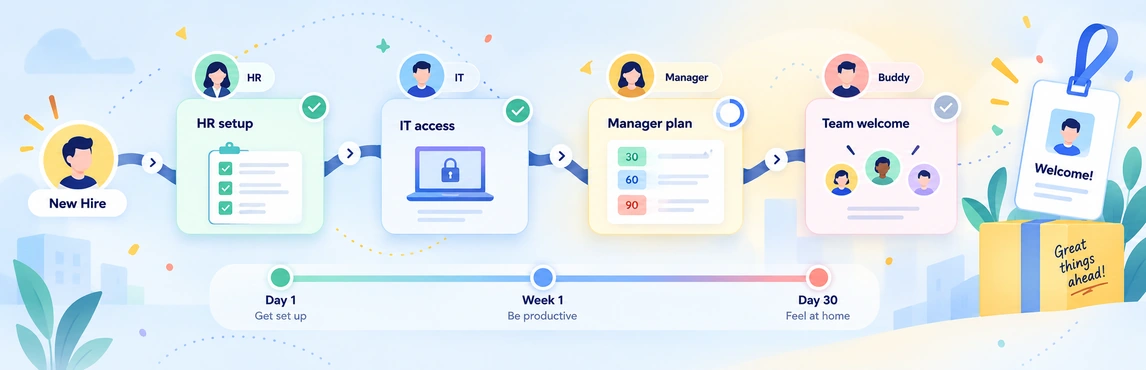
For executive review, connect these views to the workforce and headcount comparison. The HR decision workflow helps turn the meeting into a recommendation, while onboarding coordination carries approved role context into a new hire’s start.