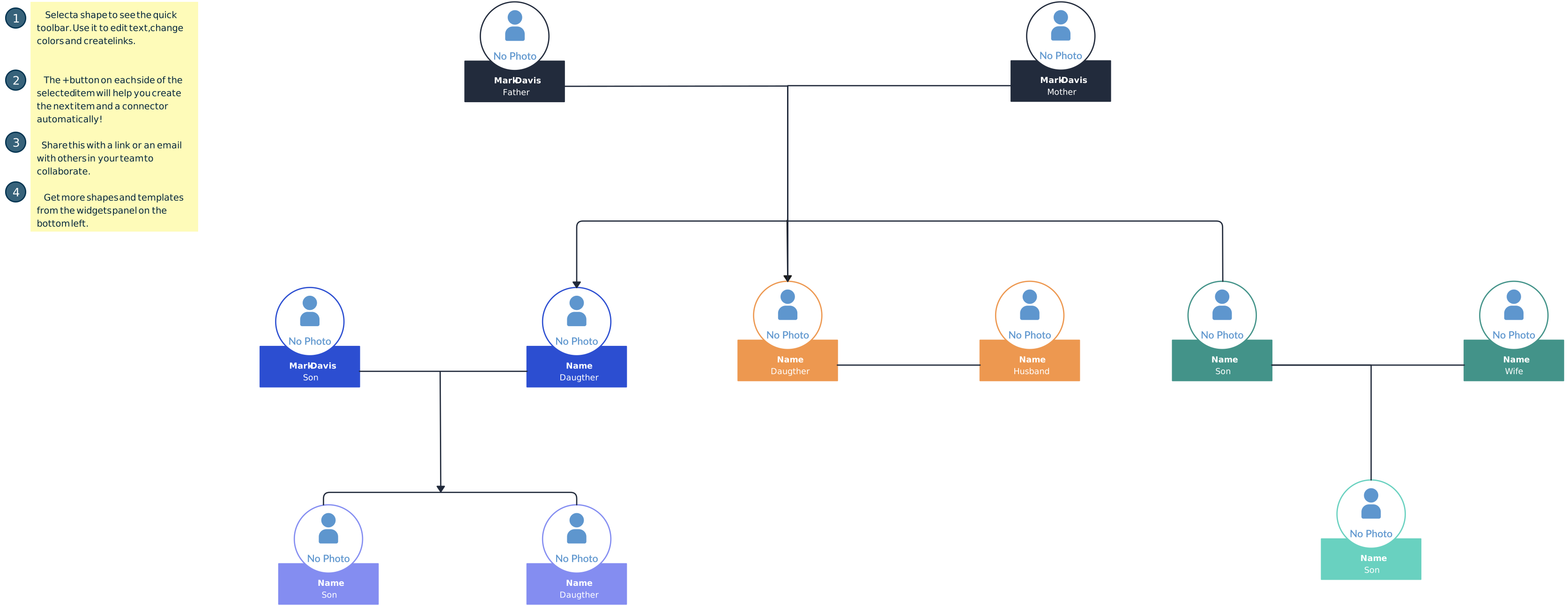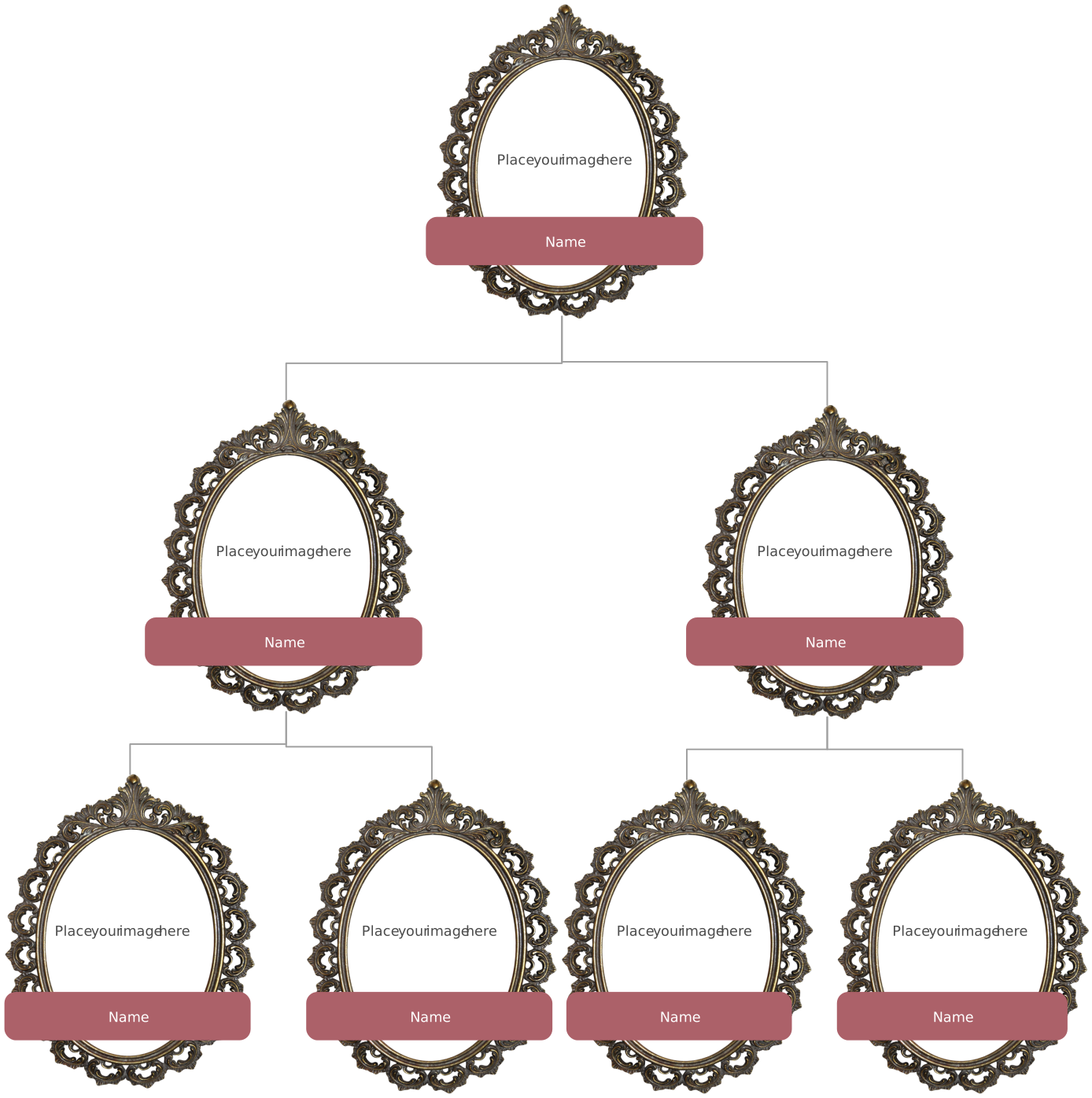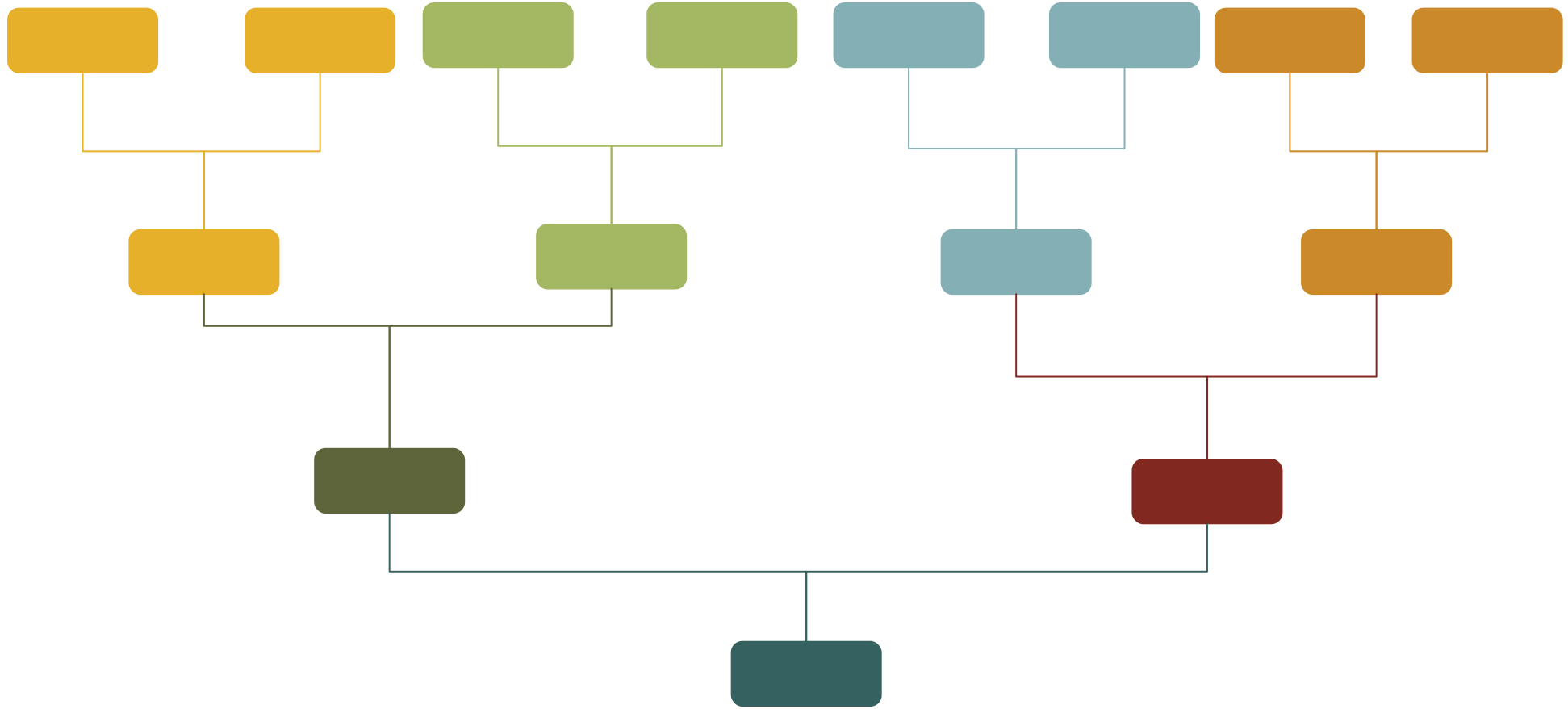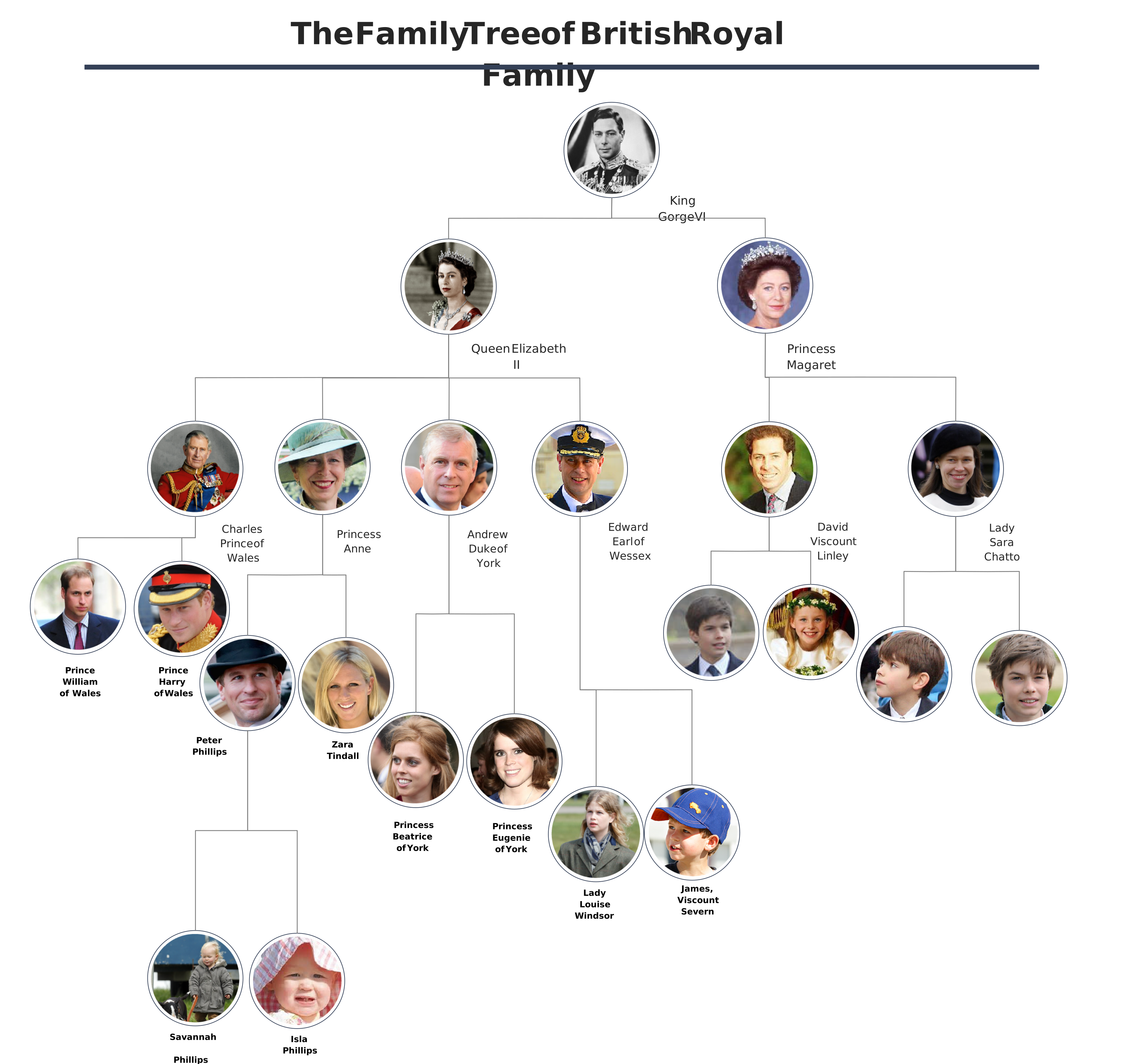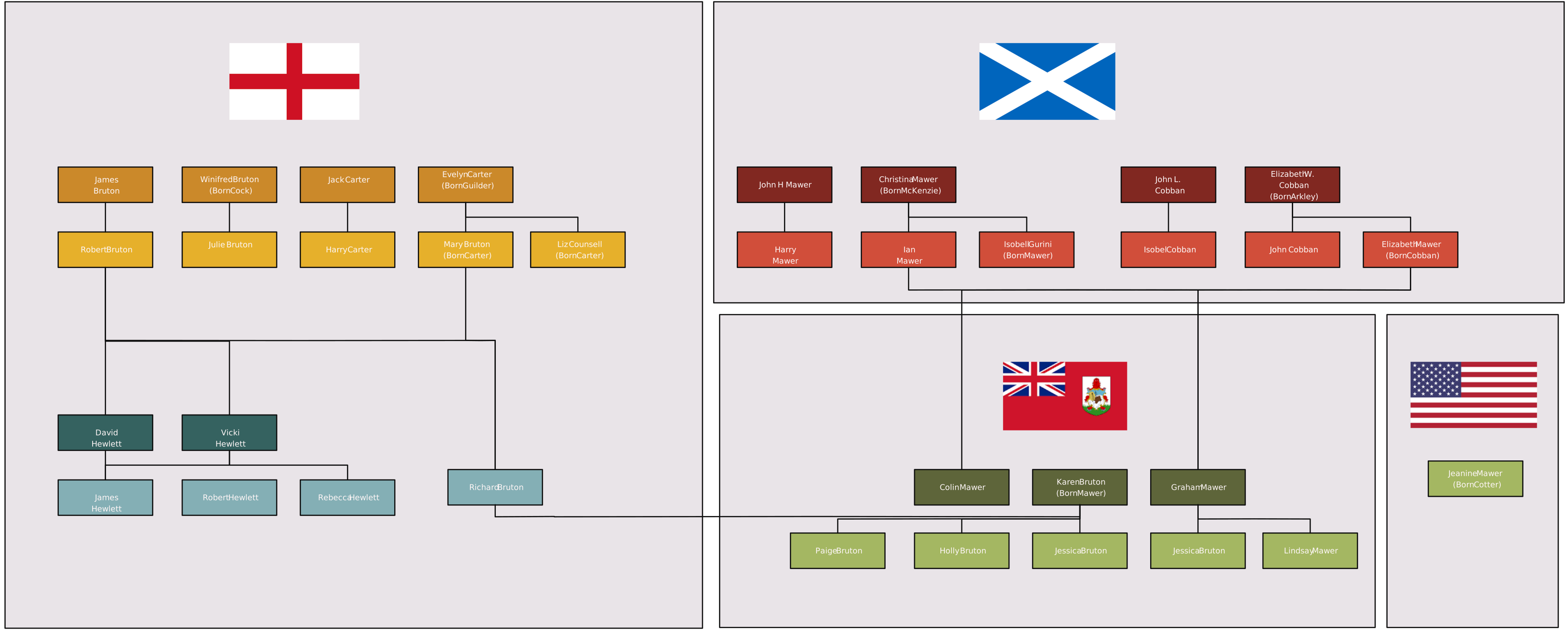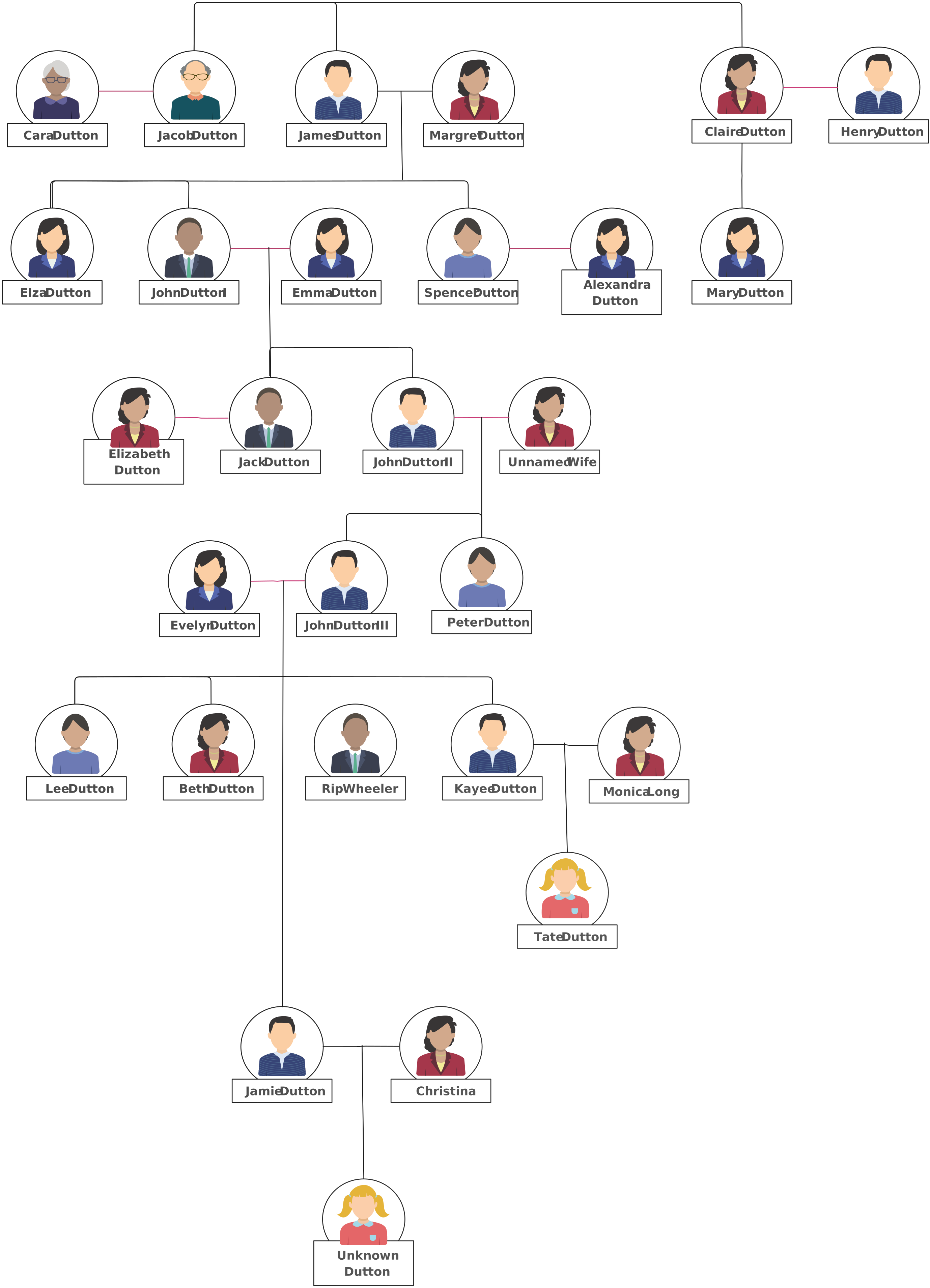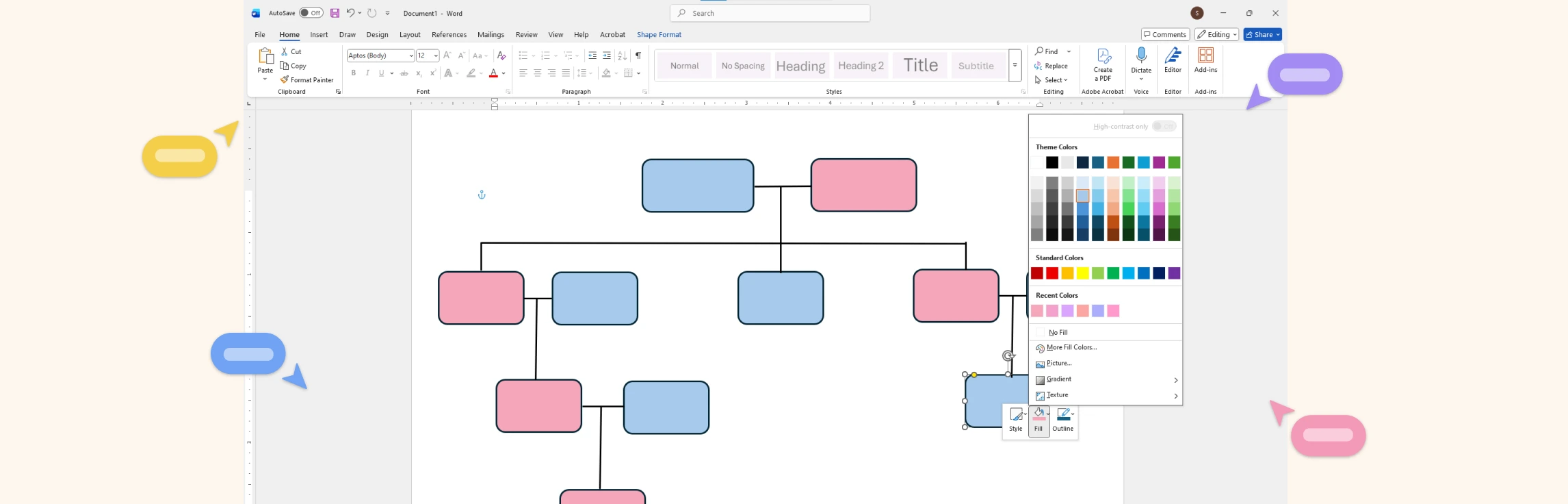
If you’re trying to figure out how to draw a family tree on Word, this guide will walk you through it in a simple, beginner-friendly way. You’ll first learn the steps of how to build a family tree in Word, then understand what Word can and can’t do, and finally, discover a much easier alternative for creating clearer, more flexible family trees. We’ll also compare this alternative with Microsoft Word and share ready-to-use templates so you can start building your family tree right away.
What Is a Family Tree?
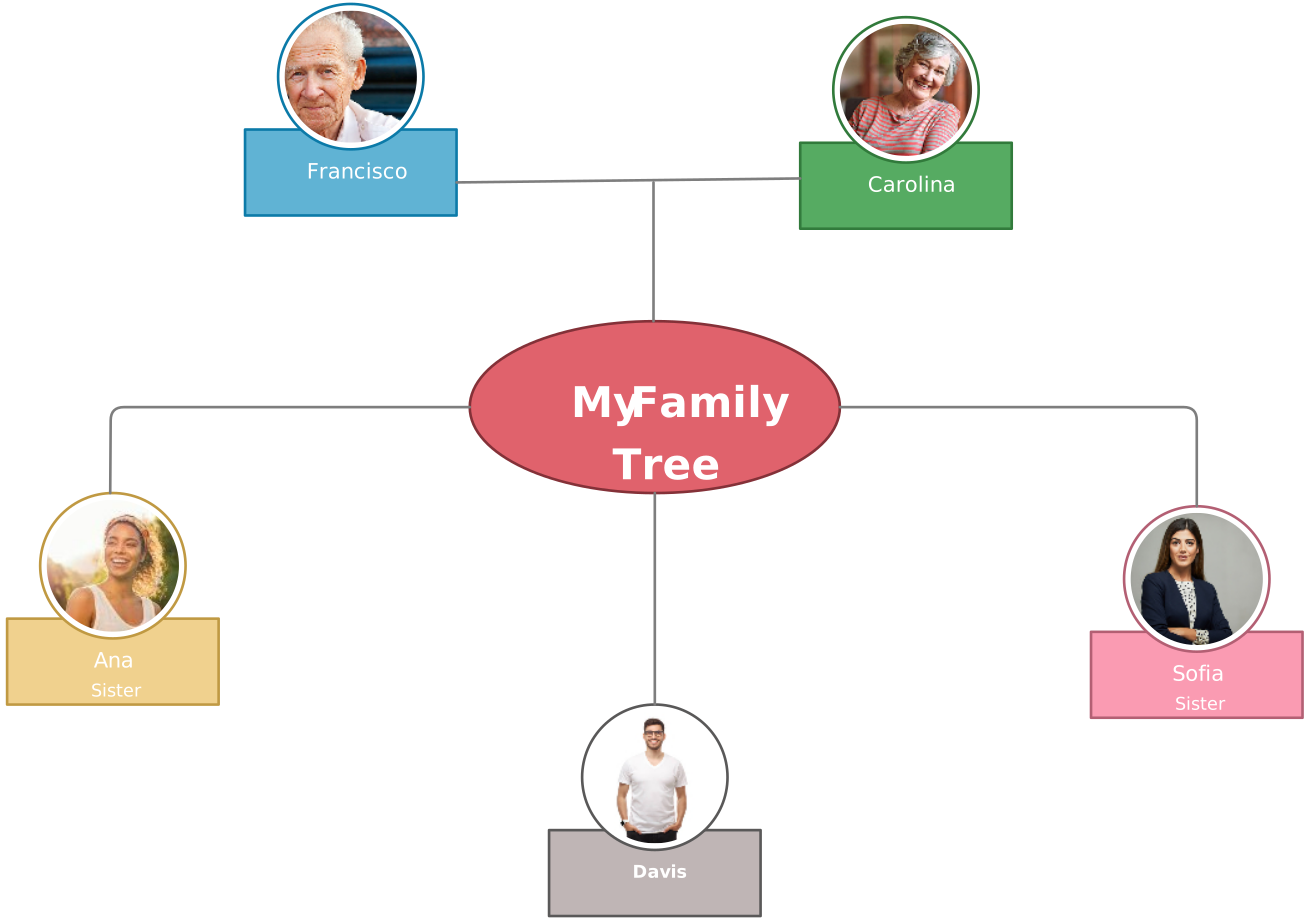
A family tree is a visual diagram that maps out a person’s ancestry, showing how family members across different generations are connected. It traces lineage, highlights relationships such as parents, siblings, and grandparents, and helps you see how each branch of the family fits together. Family trees can be simple, hand-drawn charts or detailed digital diagrams, depending on how much information you want to include.

How to Make a Family Tree in Word
Follow these step-by-step instructions to learn how to make a family tree in Microsoft Word.
Step 1: Insert a SmartArt Hierarchy Diagram
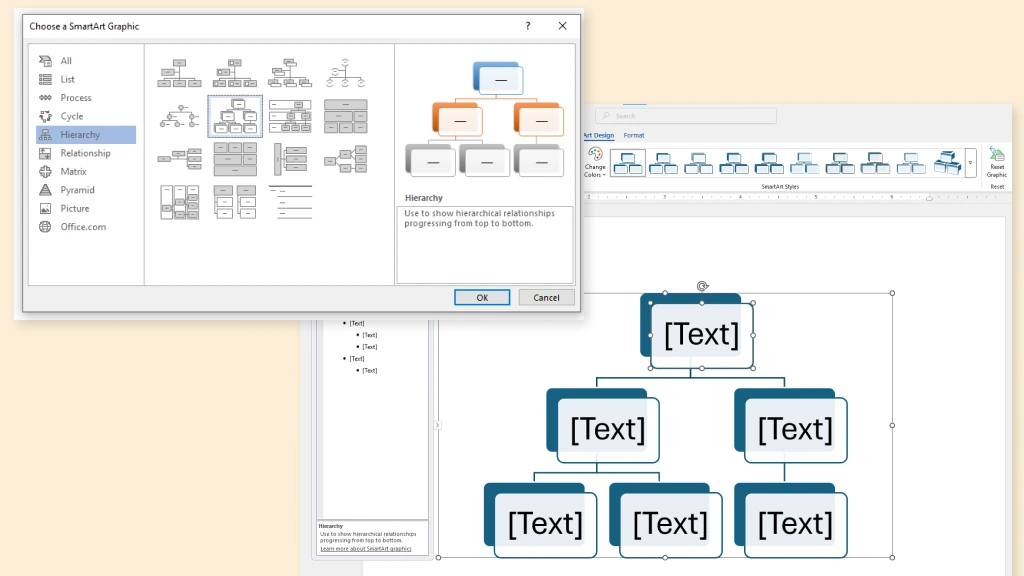
Begin by opening a blank Word document and switching the page orientation to Landscape to give yourself more space. Go to Insert → SmartArt → Hierarchy and choose a layout such as “Hierarchy” or “Organization Chart.” These diagrams are designed for parent-child structures, making them a natural starting point for family trees, though they work best when the family layout is relatively straightforward.
Step 2: Add Family Members to the Diagram
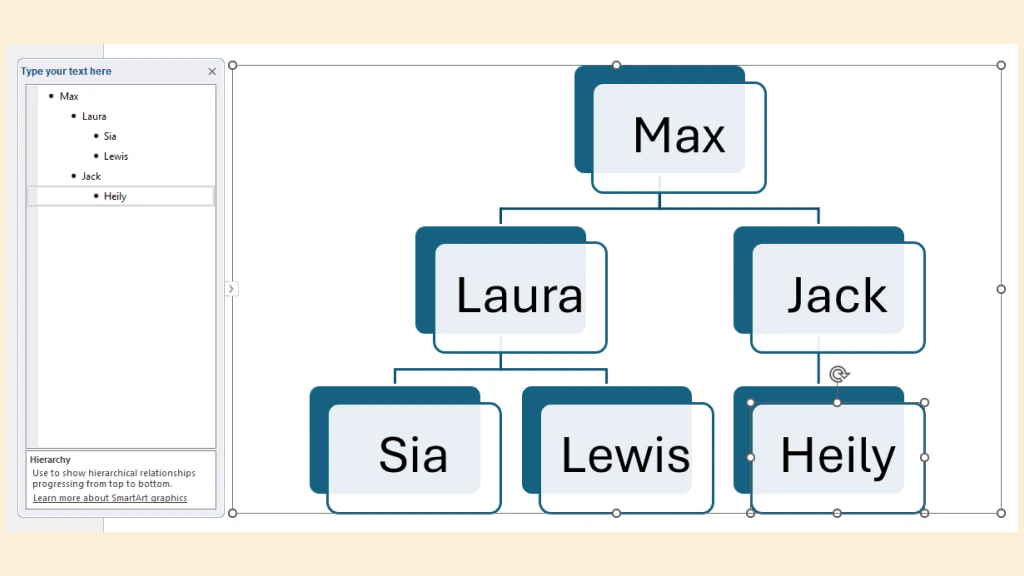
Click any SmartArt box and start typing names, birth years, or brief details. Use the Text Pane on the left to add new people. Press Enter to add a new box at the same level or use Tab and Shift+Tab to change hierarchy levels. This helps you build generations quickly, but it also locks you into SmartArt’s preset structure, which may feel limiting if your tree needs non-traditional arrangements.
Step 3: Expand Generations Using Add Shape Options
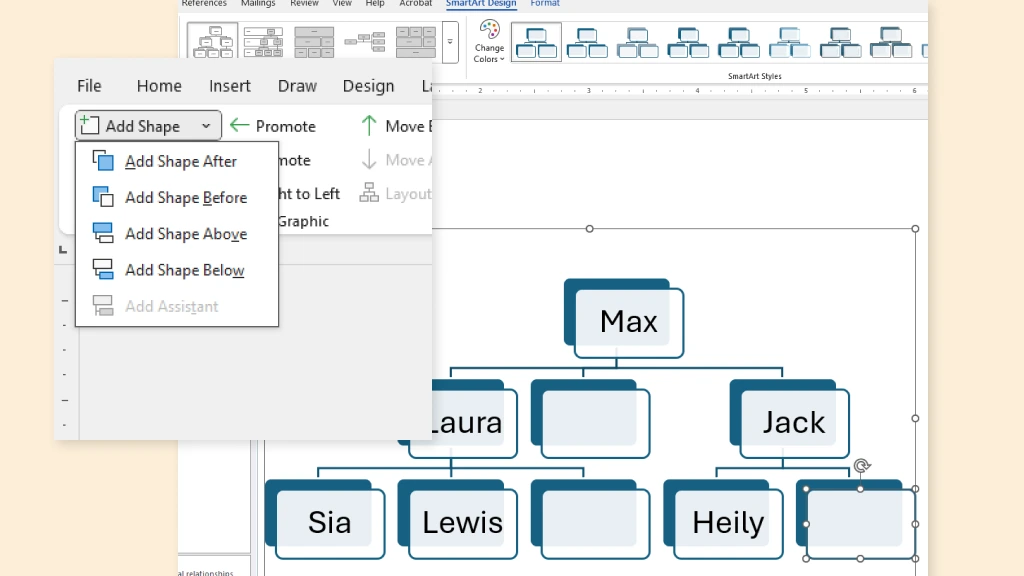
Right-click an existing box and use Add Shape to insert parents, children, or spouses in the correct position. You can choose “Add Shape Below” for children or “Add Shape Above” for parents. Adding spouses or complex family connections can feel restrictive since SmartArt doesn’t support sideways connectors or custom branching.
Step 4: Customize the Formatting and Layout
Use the SmartArt Design and Format tabs to adjust colors, layouts, and styles. You can switch to layouts like “Horizontal Hierarchy” or “Labeled Hierarchy” to better fit your family structure.
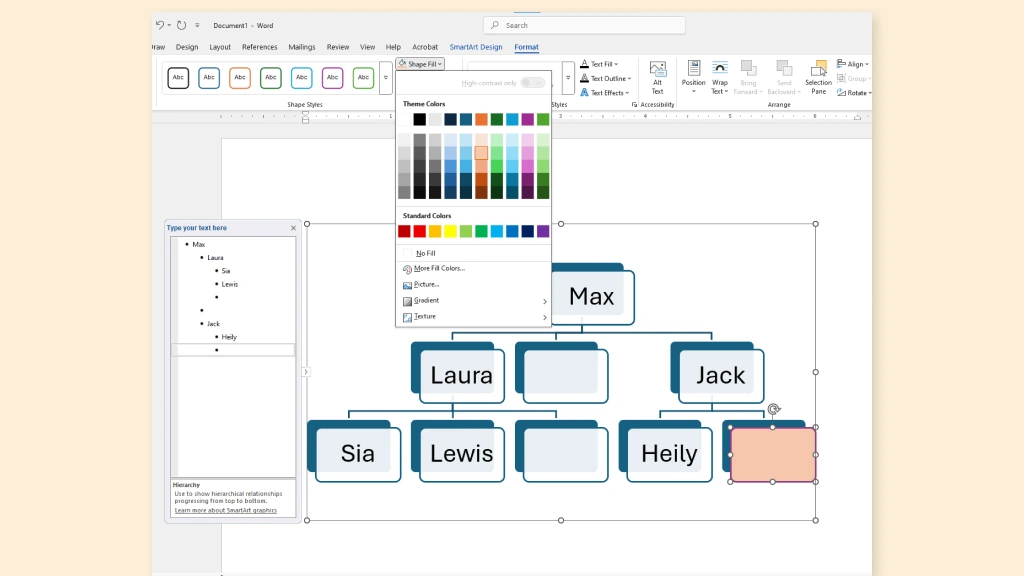
Step 5: Adjust Spacing and Rearrange the Structure
Zoom out to see the whole diagram and adjust spacing by switching layouts or resizing the SmartArt container. You can also drag individual boxes slightly, but SmartArt won’t allow complete freeform positioning. This structured behavior keeps things tidy but can be challenging when your family tree doesn’t fit a perfectly symmetrical hierarchy.
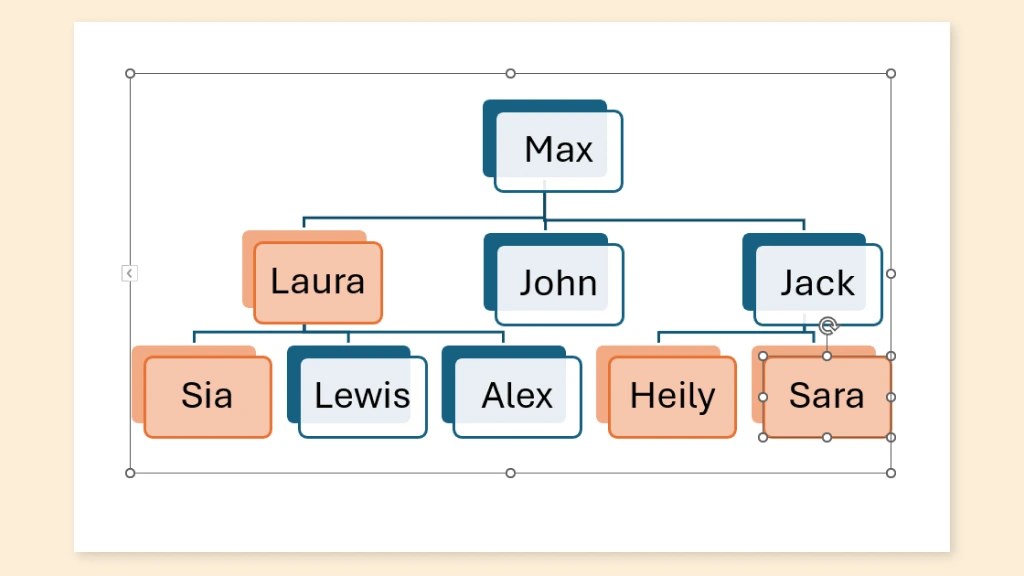
Step 6: Finalize and Export Your Family Tree
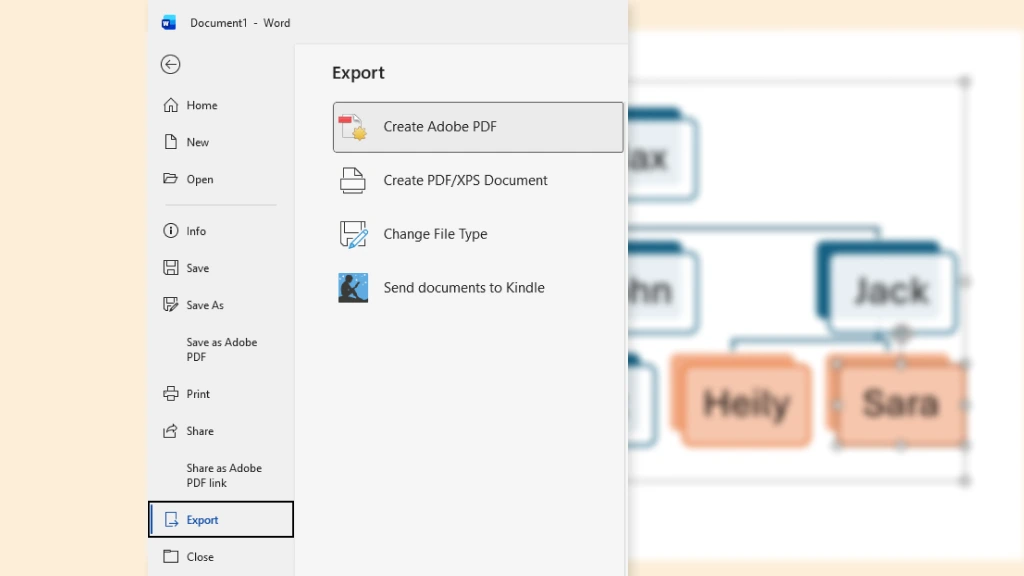
Once your SmartArt-based family tree looks complete, save your document as a .docx for future editing. For sharing or printing, export it as a PDF to preserve the layout. This ensures your spacing, colors, and structure remain exactly as intended.
Challenges of Using Microsoft Word for Making Family Trees
Now that you know how to make a family tree chart in Word, let’s take a closer look at the challenges of using it.
Limited page space: Word uses a fixed-page layout, which makes it difficult to expand a family tree horizontally or vertically as more generations are added.
Rigid SmartArt structures: SmartArt only supports basic hierarchies and struggles with complex family setups such as blended families, multiple spouses, or non-linear relationships.
Manual alignment becomes tedious: When using Shapes, every box must be positioned and aligned manually, which becomes time-consuming as the tree grows.
Connectors don’t stay attached: Lines often detach or misalign when shapes are moved, forcing repeated corrections and constant rearranging.
Crowding and readability issues: Larger trees quickly become cluttered, and resizing everything to fit on one page can make names and details hard to read.
Difficult to update and maintain: Adding a new member or an extra generation usually requires shifting multiple shapes and connectors, making updates slow.
Limited collaboration and flexibility: Word isn’t designed for fluid diagramming, so editing with others, experimenting with layouts, or reorganizing branches is more cumbersome than in a dedicated diagramming tool.
If these limitations feel familiar, switch to Creately, a dedicated diagramming tool that makes family tree building much easier with its infinite canvas and smarter, more flexible layout options.
Benefits of Using Creately for Drawing a Family Tree
Creately’s family tree creator gives you an intuitive, flexible, and collaborative space to map out your entire family history, without the layout limitations of traditional tools like Microsoft Word.
Flexibility & Ease of Use
- Infinite canvas allows your tree to grow naturally without page limits.
- Simple drag-and-drop editing makes arranging generations effortless.
- Smart connectors stay attached when you move shapes, keeping the structure clean.
Handles Complex Family Structures
- Easily map blended families, multiple spouses, step-siblings, and adopted children.
- No rigid hierarchy—adjust branches exactly the way your family is structured.
- Add photos, labels, and custom details without breaking the layout.
Faster Start & Clean Visuals
- Ready-made family tree templates you can customize instantly.
- Color-coding and styling options improve clarity and readability.
- Consistent formatting keeps large trees organized and visually appealing.
Collaboration & Easy Sharing
- Invite family members to add information or help build the tree in real time.
- Commenting and @mentions make it easy to discuss changes or verify family history directly on the diagram.
- Export as PNG, PDF, JPEG, or embed into documents and websites.
Saving & Updating
- Cloud-based saving ensures everything stays in sync.
- Updating the tree as your family grows is quick and doesn’t disrupt the layout.
- Ideal for long-term use—no need to rebuild from scratch each time you make changes.
Creately Vs Microsoft Word Family Tree Features Comparison
If you’re deciding whether to create a family tree in Word or use Creately, this comparison shows how both tools handle layout, editing, and long-term maintenance.
Feature / Capability | Creately | Microsoft Word |
Canvas & Space | Infinite canvas that expands in any direction | Fixed page layout with limited space |
Ease of Editing | Drag-and-drop editing with smart alignment | Manual alignment required for every box |
Connectors | Smart connectors that stay attached when moving shapes | Connectors often detach or shift when shapes move |
Complex Family Structures | Easily handles blended families, multiple spouses, step-siblings, etc. | Rigid layouts; difficult to represent non-linear relationships |
Templates | Ready-made family tree templates fully customizable | Limited templates; mostly hierarchy or SmartArt charts |
Visual Styling | Color-coding, images, custom labels, consistent formatting | Basic shape formatting and color options |
Collaboration | Real-time collaboration with family members | No real-time collaboration (single-user editing) |
Updates & Growth | Easy to expand and modify without breaking the layout | Updates often require rearranging shapes manually |
Sharing & Exporting | Export as PNG, PDF, JPEG, or embed online | Export options limited; layout may shift |
Long-Term Maintenance | Designed for ongoing updates as the family grows | Maintenance becomes harder as diagrams get larger |
Read how to make a family tree to learn how to draw one in Creately, along with best practices to structure generations clearly, highlight relationships accurately, and keep your diagram easy to update over time.