Learning how to create a process map in Word is useful when you need a simple workflow diagram in a familiar document. This guide explains the steps, Word’s practical limitations, and when a dedicated process mapping tool is a better fit. It also includes a feature comparison and free templates to help you choose the right approach.
What is a Process Map?
A process map is a visual diagram that outlines how a workflow or business process functions. It uses shapes, connectors, and labels to represent steps, decisions, inputs, and outputs in a clear sequence. Process maps help teams understand how tasks flow from one stage to another, highlight inefficiencies, and improve overall clarity in operations. While basic diagrams can be assembled manually, creating detailed, well-structured process maps often requires careful formatting and layout adjustments to keep everything organized and easy to follow.
Read the process mapping guide to learn more about the different types, who can use process maps, and their benefits.
How to Make a Process Map in Word
Let’s go through the steps of how to draw a process map in Word.
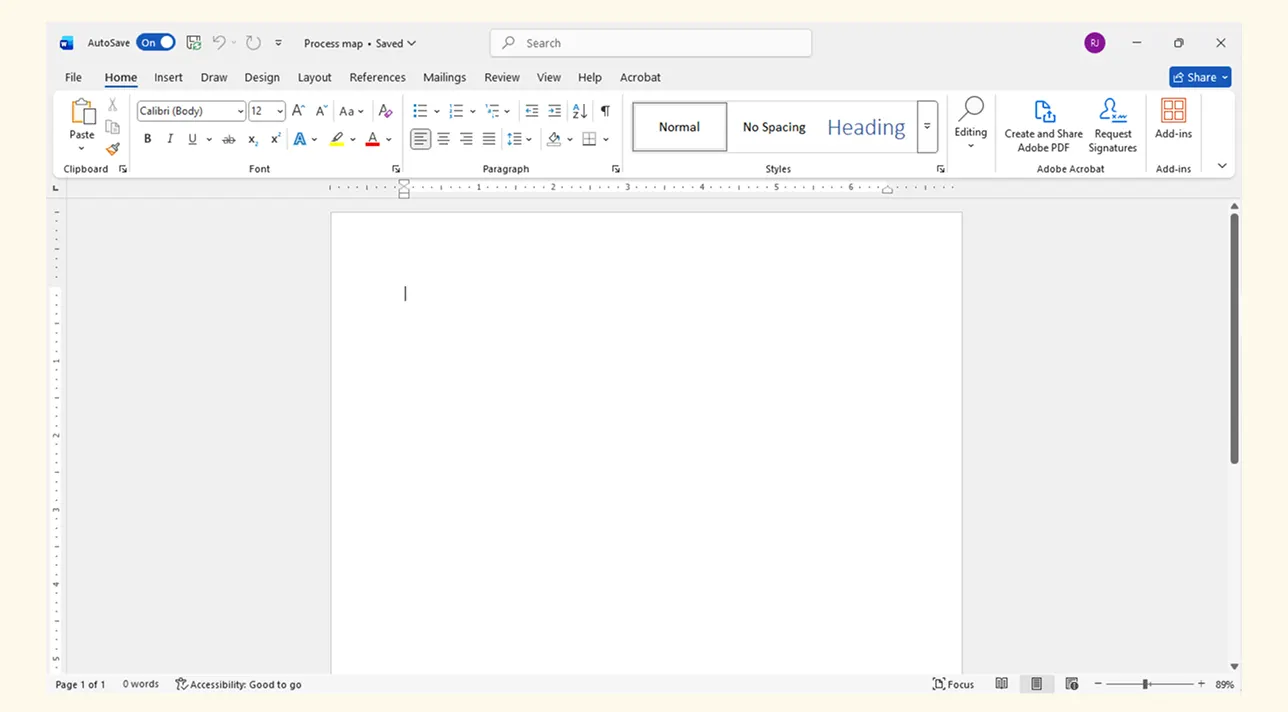
Step 1: Open a Word Document
Start with a clean page and define the process scope, start and end points, key roles, and important handoffs. Listing the steps before drawing helps you build a process map that is complete and easy to review.
Step 2: Insert Flowchart Shapes
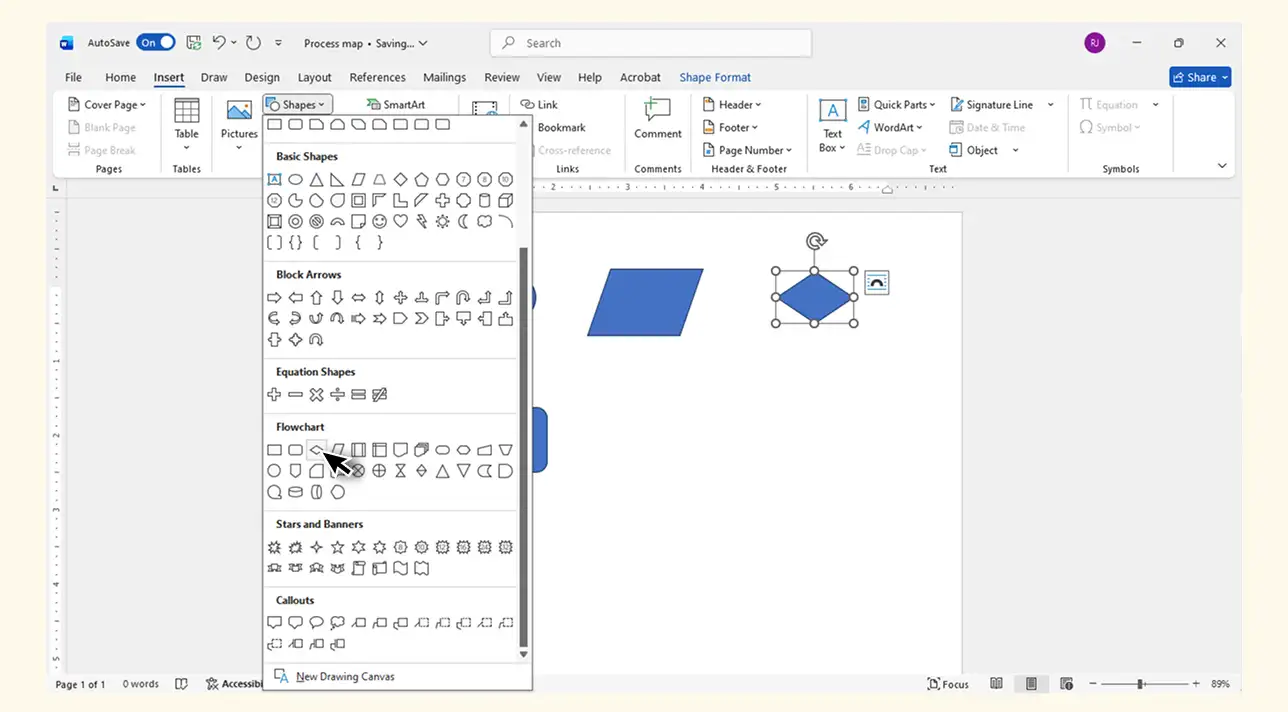
Go to Insert → Shapes and choose flowchart symbols such as process boxes, decision diamonds, and connectors. For a quick, linear process, you can also choose a layout from Insert → SmartArt → Process. SmartArt is convenient for simple sequences, while Shapes gives you more control over branching workflows.
Step 3: Add and Arrange Your Steps
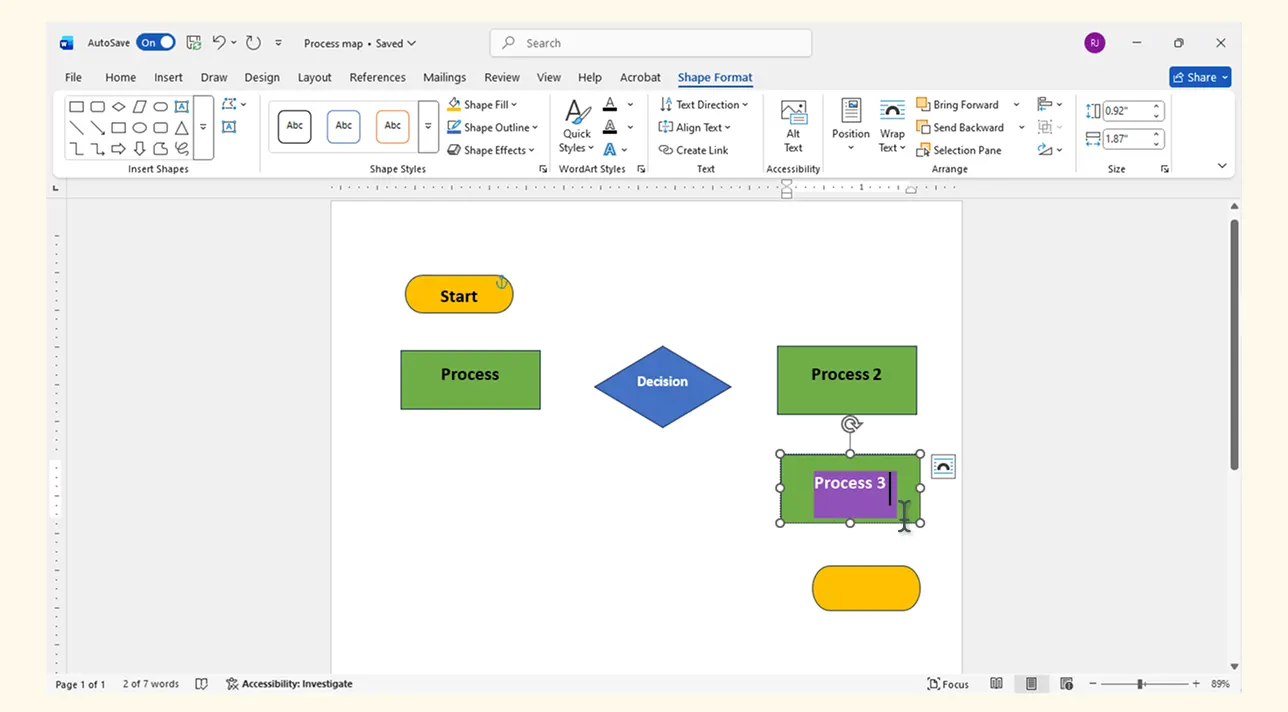
Place each shape in sequence and label them using text boxes or inline text. This part may take some manual adjustments to keep spacing and alignment consistent.
Step 4: Connect the Shapes
Use a connector from Insert → Shapes → Lines to show the flow between steps. Attach each connector to a connection point on the shapes so it follows them when they move. You may still need to adjust routing and spacing manually as the diagram changes.
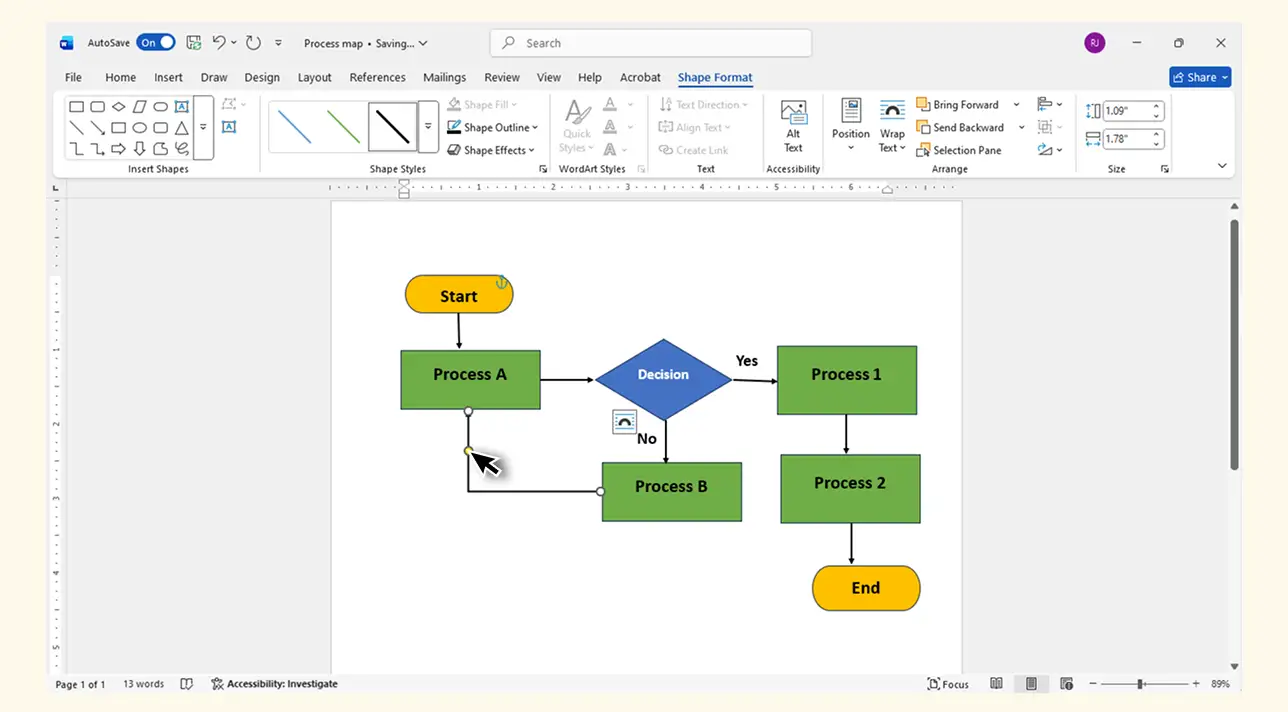
Step 5: Format Your Diagram
Customize colors, outlines, and text to make your process map easier to read. Word provides essential formatting tools, but complex layouts may require additional refinements.
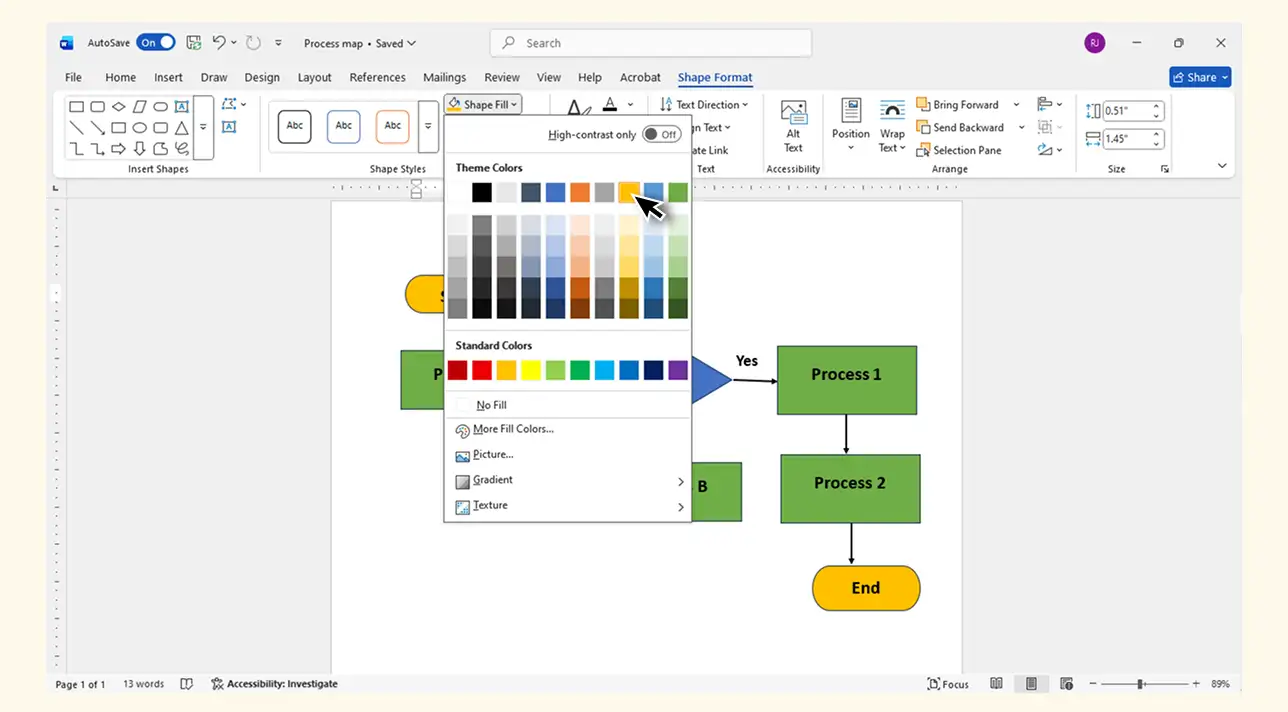
Step 6: Export and Share Your Process Map
Once your diagram is ready, save or export the document as a PDF, share the Word file, or save grouped diagram elements as a picture where your Word version supports it. Files stored in OneDrive or SharePoint can be coauthored, commented on, and reviewed with Track Changes. Group shapes and check the layout before sharing because page and text-wrapping changes can still shift diagram elements.
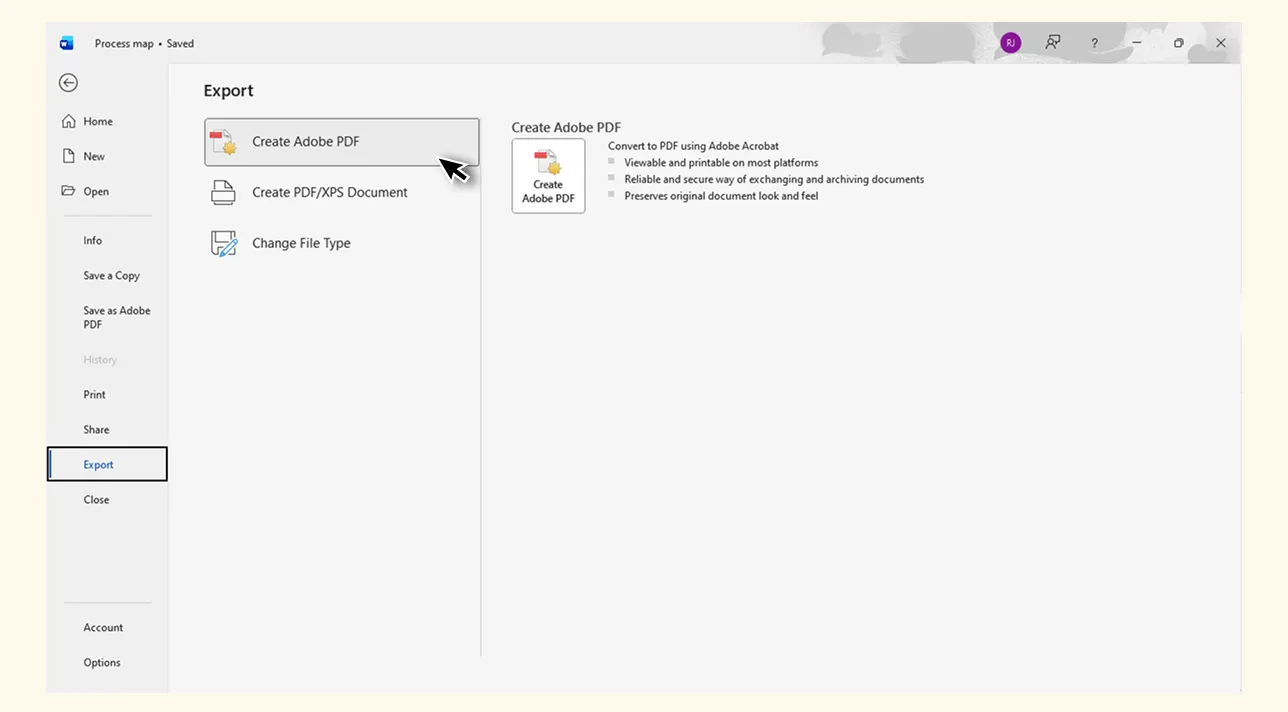
Limitations of Creating a Process Map in Word
Word works well for a small process diagram inside a document, but it becomes harder to manage as the workflow grows.
Manual diagram construction: SmartArt provides basic Process layouts, and Shapes provides common flowchart symbols. More detailed maps still require manual placement, alignment, and formatting.
Limited process-specific notation: Word supports standard flowchart shapes but does not provide the breadth of BPMN 2.0, swimlane, SOP, and process-mapping resources available in a dedicated tool.
Page-based layout: Large maps must fit within document pages and text-wrapping rules. Complex branches, cross-functional lanes, and detailed subprocesses can become difficult to read and revise.
Document-centered collaboration: Word supports coauthoring, comments, Track Changes, and version history when files are stored in a supported cloud location. However, the review remains centered on the document rather than structured process properties, ownership, and connected subprocess context.
Manual maintenance: Hyperlinks and bookmarks can connect readers to files or other locations, but notes, owners, systems, and other process details are not structured around diagram steps by default. Keeping the map current therefore requires careful manual updates.
Limited diagram exports: Word can produce a PDF and, in supported desktop versions, save selected graphics as a picture. Dedicated diagram formats and scalable vector exports are less direct.
Word is suitable for a quick process visual in an existing document. For larger workflows or living process documentation, Creately’s process mapping software provides process-specific modeling, connected context, and collaborative editing.
Why Creately is the Best Alternative for Creating Process Maps
If a process must remain useful after the first draft, Creately’s process mapping software helps teams move from a static diagram to connected, maintainable process documentation.
Ease of Use & Canvas Experience
Room for end-to-end workflows: Build processes on a flexible visual canvas without fitting every branch and handoff onto a document page.
Faster restructuring: Move, group, and align process steps as the workflow changes while connectors remain attached.
Symbols, Shapes & Templates
Process-specific notation: Use flowchart and BPMN 2.0 shape libraries for simple workflows or more detailed process models.
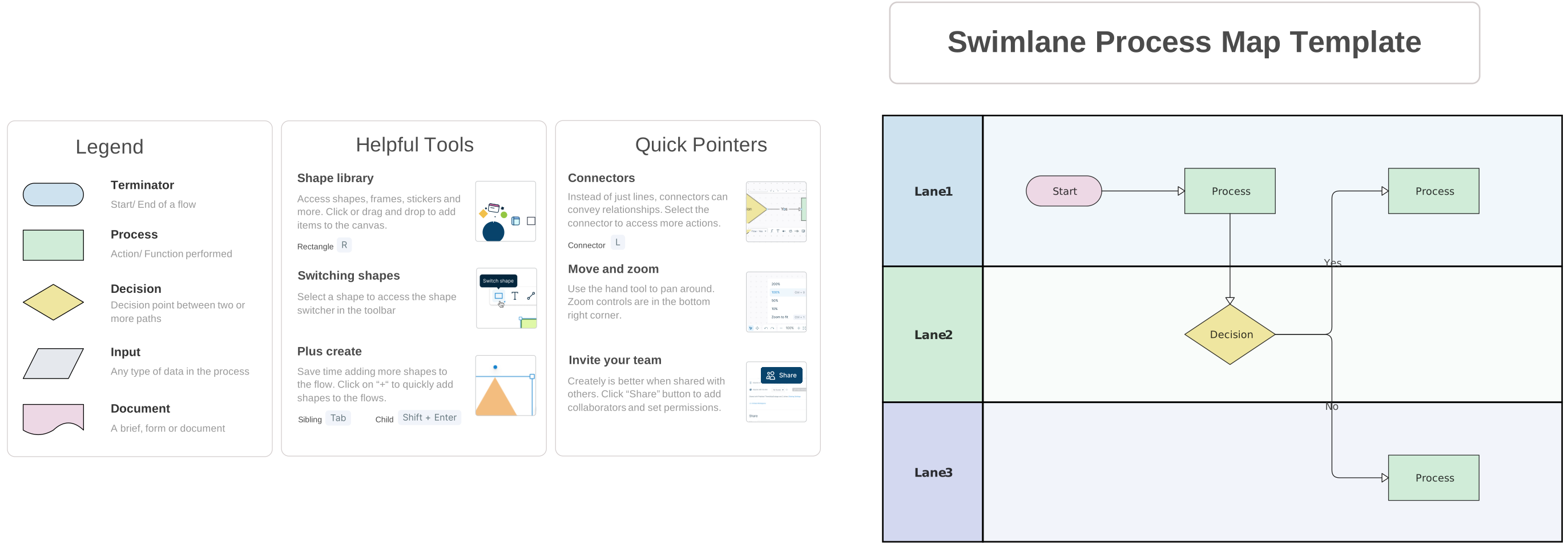
Relevant starting points: Begin with editable templates for process maps, swimlanes, SOP workflows, and value-stream maps, then adapt them to the way your team works.
Reusable visual structures: Standardize recurring layouts and conventions so related processes are easier to understand.
AI Flowchart Generator
Editable first drafts from text: Describe a workflow in natural language to generate an initial flowchart with steps, decisions, and connections.
Refine with human context: Review the generated draft, correct the sequence, add missing handoffs, and apply the appropriate process notation before publishing it.
Connectors & Layout Behavior
Connected flow while editing: Connectors remain attached as shapes move, and layout tools help reorganize the diagram as the process evolves.
Clearer handoffs: Use lanes, labels, and ownership properties to show where work moves between people, teams, or systems.
Styling & Visual Quality
Consistent presentation: Apply themes, colors, and formatting to distinguish roles, stages, exceptions, and decision paths.
Readable at different levels: Keep high-level process views clear while linking to more detailed subprocess diagrams when additional context is needed.
Collaboration & Teamwork
Real-time editing and feedback: Stakeholders can edit together, see collaborators on the canvas, and use contextual comments to discuss specific parts of the process.
Practical review workflow: Teams can collect feedback in context, while accountable owners incorporate agreed changes and keep the process current.
Scalability & Process Documentation
Connected process context: Add notes, links, and file attachments to relevant shapes, and use structured properties such as owner, status, duration, systems, tags, triggers, and SLAs where applicable.
Living documentation: Keep operational guidance and supporting material connected to the visual workflow so people can understand both what happens and the context needed to perform it.
Accountable maintenance: Identify who owns a process or step, document handoffs, and connect overview maps to detailed subprocess diagrams so teams can navigate between levels of process detail.
Creately Vs Word: Process Mapping Features Comparison
Here’s how creating process maps in Word compares to using Creately’s dedicated process mapping tools.
| Feature | Word | Creately |
| Process Mapping Symbols | SmartArt Process layouts and common flowchart shapes | Flowchart and BPMN 2.0 libraries for process modeling |
| Connector Behavior | Attached connectors can follow shapes, but routing and spacing often need manual adjustment | Connectors remain attached, with alignment and layout tools for faster restructuring |
| Editing Environment | Page-based document layout | Flexible visual canvas for end-to-end and cross-functional workflows |
| Styling & Formatting | Office shape styles, colors, and text formatting | Themes and diagram styling for consistent process views |
| Templates | Basic SmartArt Process layouts; specialized process templates are limited | Editable process map, swimlane, SOP workflow, and value-stream templates |
| Collaboration | Cloud coauthoring, comments, Track Changes, and version history in supported setups | Real-time canvas editing, collaborator visibility, and contextual comments |
| Scalability | Large maps are harder to manage within page and text-wrapping constraints | Supports high-level maps, detailed workflows, and linked subprocess diagrams |
| Export Options | PDF and picture export options vary by Word version | PNG, PDF, and SVG export options, depending on plan |
| Linking & Documentation | Hyperlinks and bookmarks are available, but process context is not structured by step | Notes, links, files, structured properties, and linked diagrams can remain connected to relevant shapes |
| Advanced Modeling | Manual flowchart construction; no dedicated process data model | BPMN 2.0, structured process properties, linked subprocesses, and editable AI-generated first drafts |
| Best Use Case | Small process visuals embedded in documents | Collaborative process mapping and living process documentation |
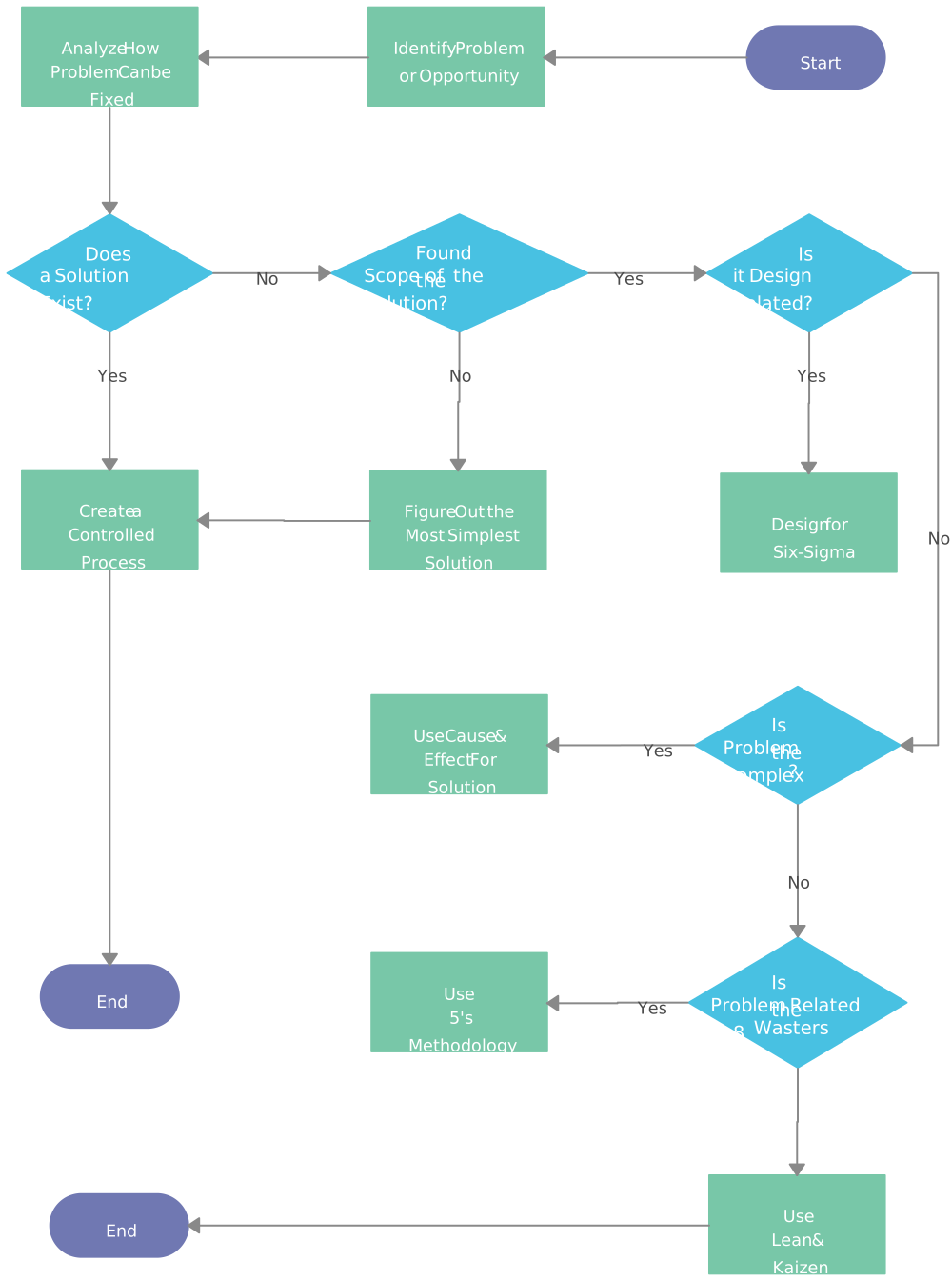
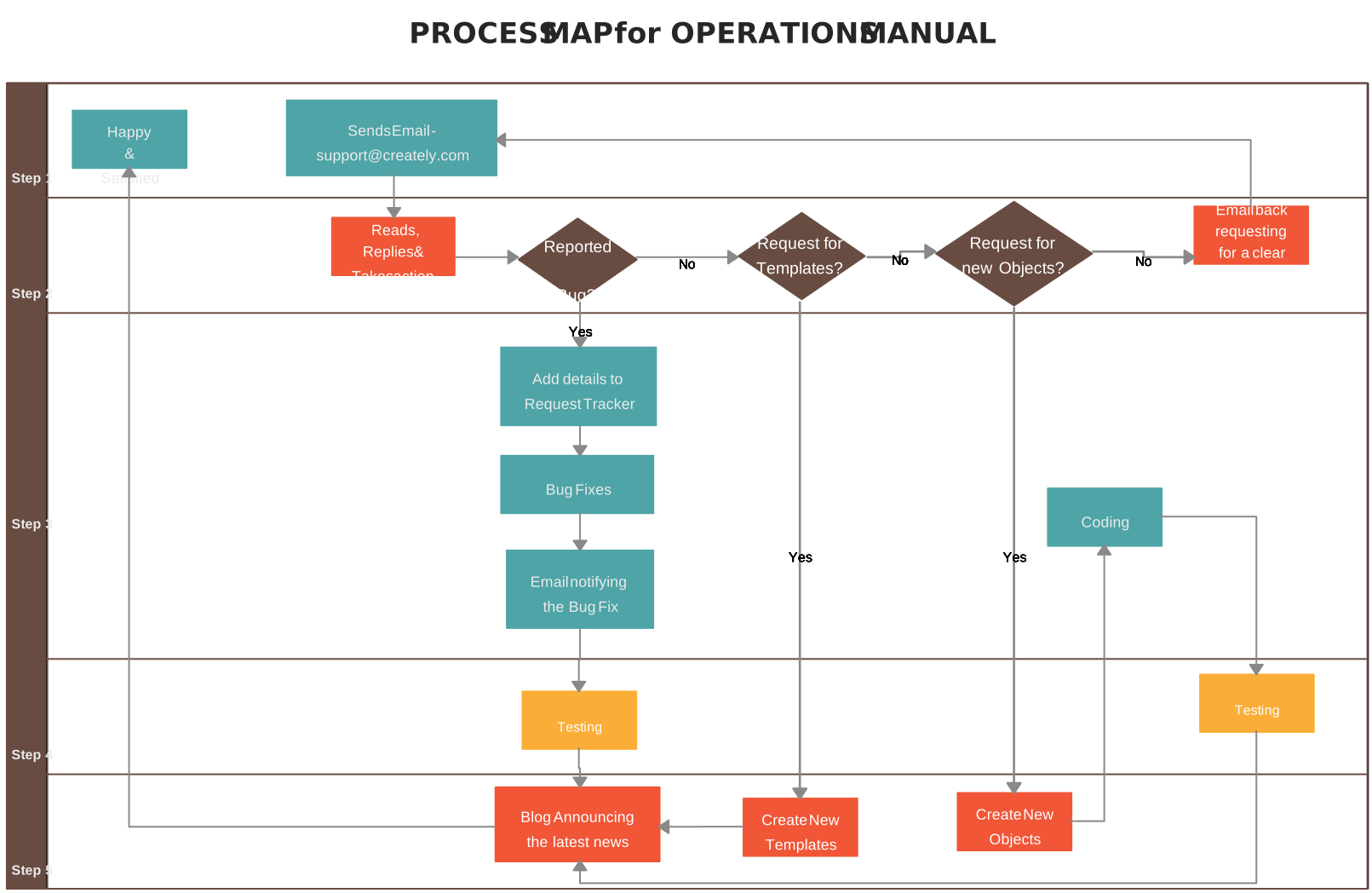
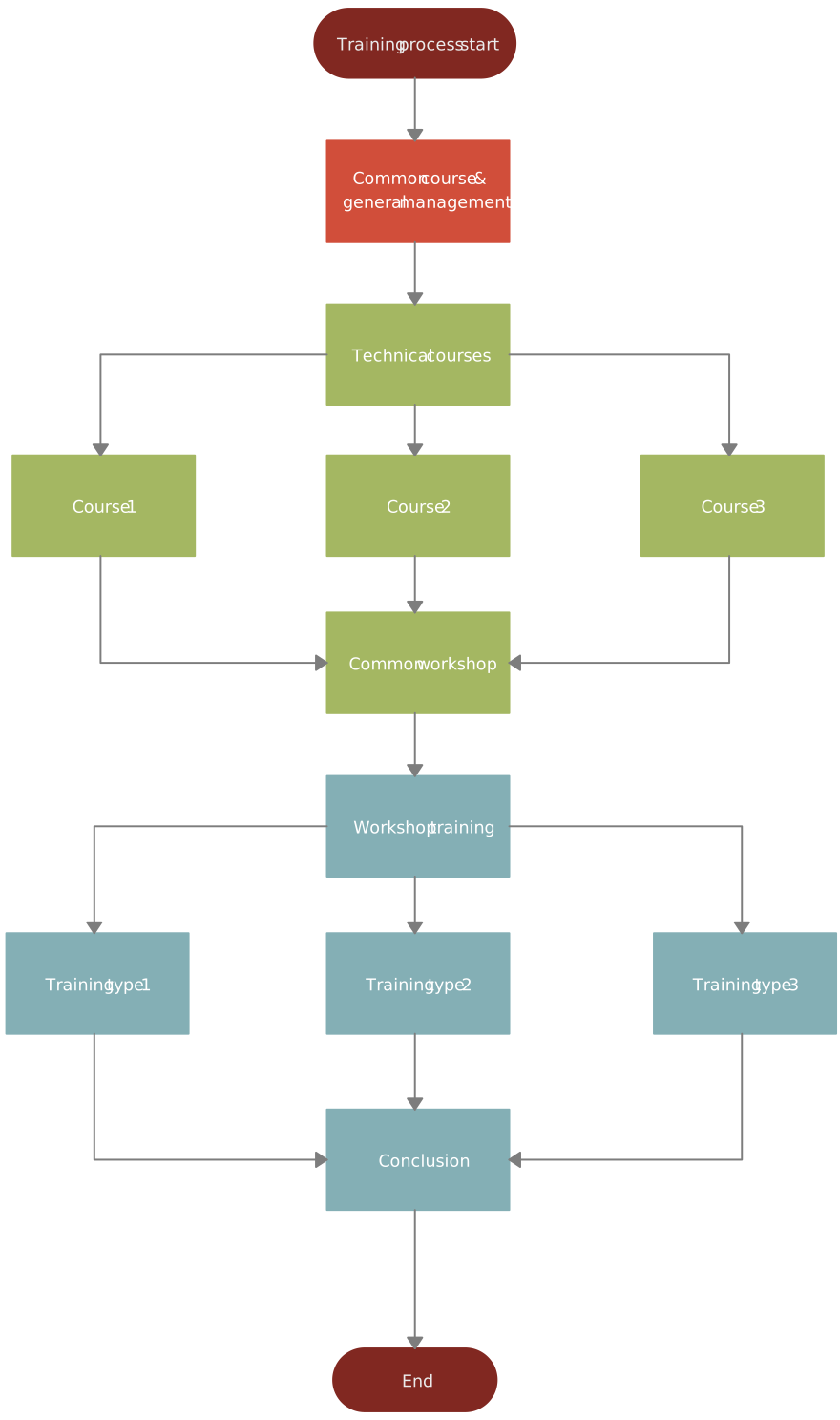
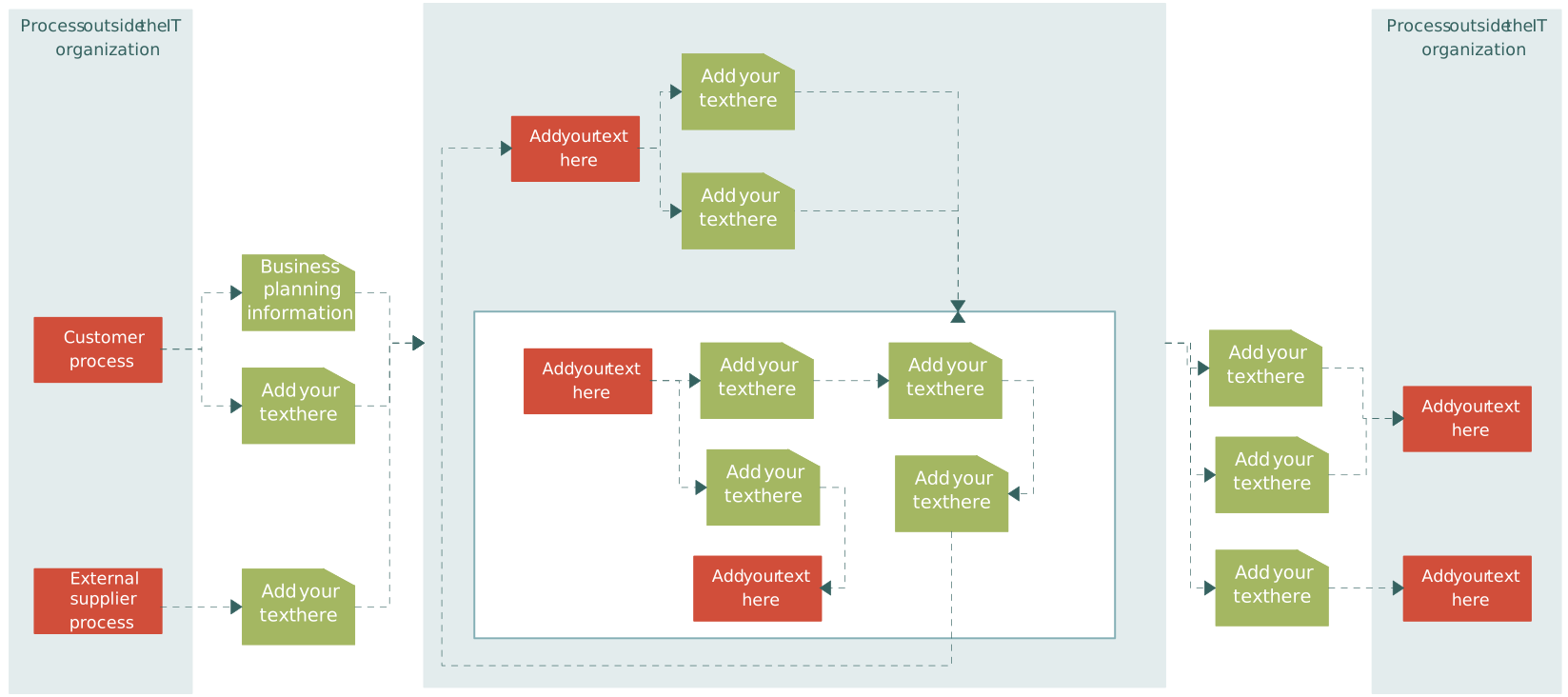
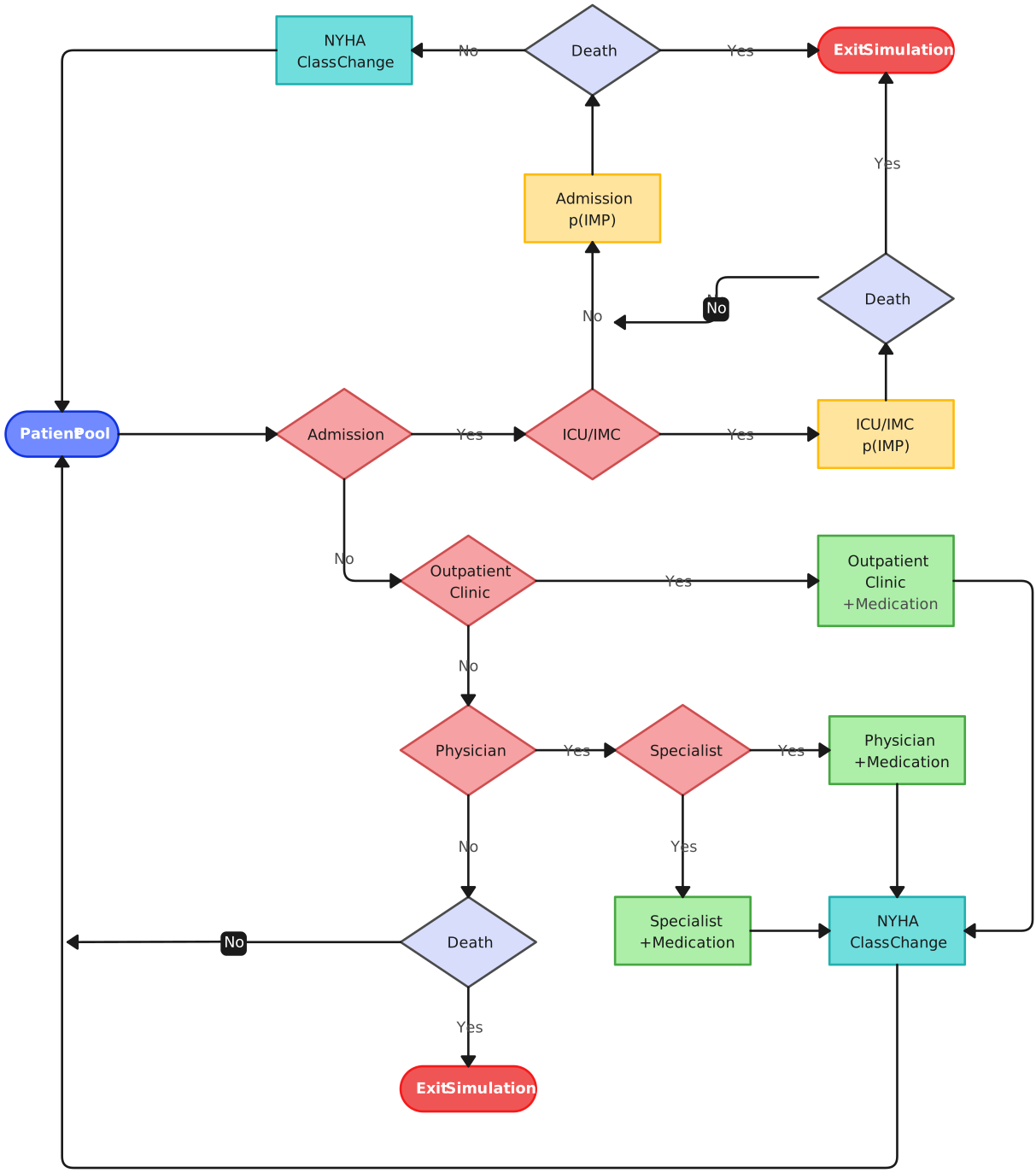
Free Process Map Templates to Get Started


Helpful Resources for Making Process Maps
Explore the different types of process maps and how they are used.
Learn step-by-step how to make a process map in Microsoft Excel.
Understand the four levels of business process mapping.